Free pdf tool
Convert HEIC to PDF
Combine HEIC photos from your iPhone or iPad into one PDF. Reorder pages and download, without installing anything or uploading your photos.
- Runs on your device
- No sign-up
- No watermark
Drop HEIC photos here
HEIC, HEIF, JPG and PNG·Browse files·or paste with ⌘V
Opened in this tab only. Nothing is uploaded.
How to use HEIC to PDF
- 01
Add HEIC photos
Drop in one or more .heic files. JPG and PNG can be mixed in too.
- 02
Order the pages
Drag to reorder. Each photo becomes one page.
- 03
Pick a page size
Fit each page to its photo, or use A4 or Letter for printing.
- 04
Download the PDF
Get one document with all your photos, ready to share or print.
What it does well
- No app needed
- Works in any modern browser on Mac, Windows, iPhone or Android.
- Mixed formats
- Combine HEIC with JPG, PNG and WebP in the same PDF.
- Correct orientation
- Photos appear the right way up.
- Private
- Photos are decoded locally and never uploaded.
 Quilt for Mac
Screens and photos into one PDF
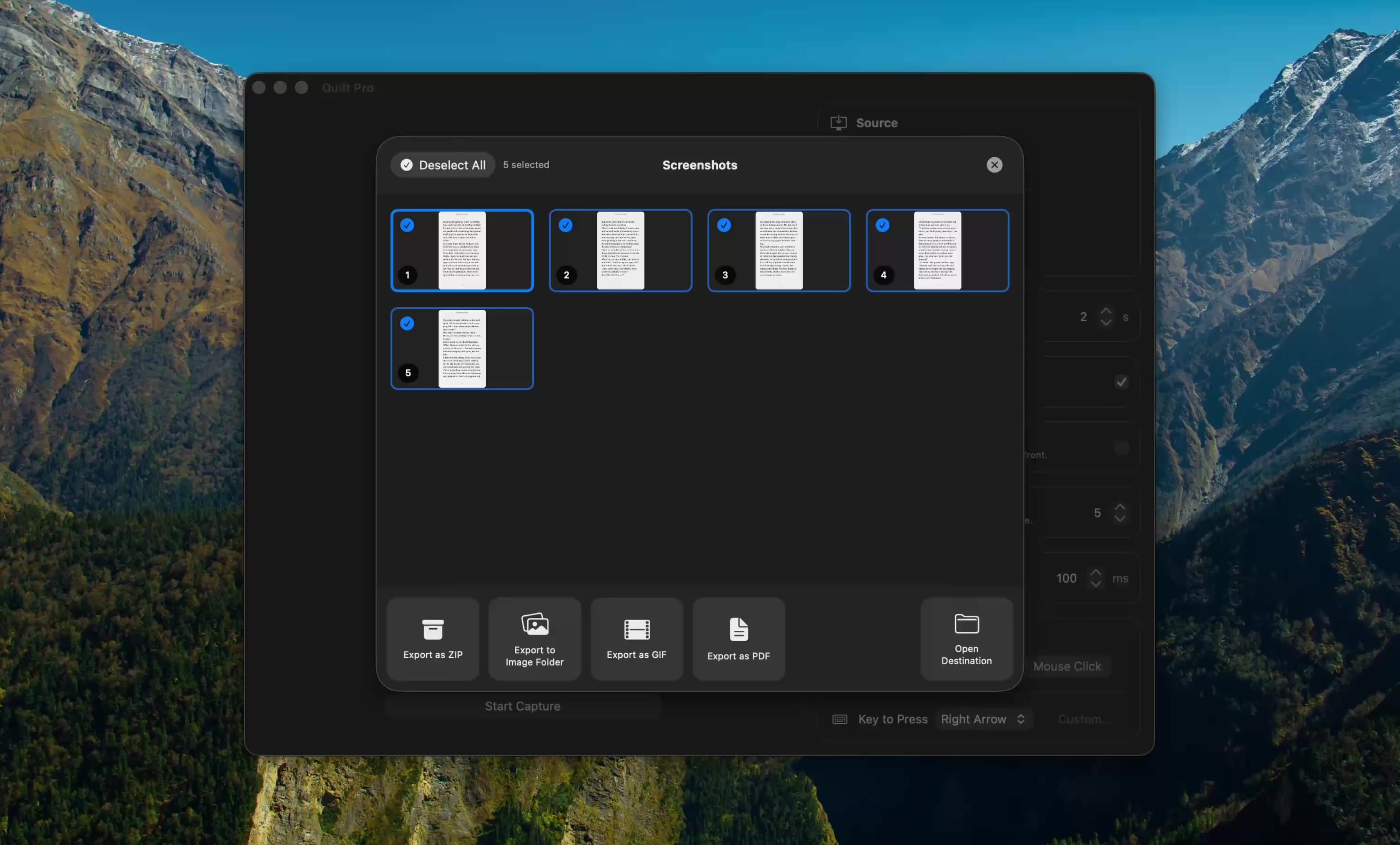
Quilt turns captures of anything on your Mac screen into a single, ordered PDF, with OCR so the text is searchable.
Free to start · macOS 14 or later · Intel and Apple silicon
Questions, answered
Something else on your mind? Email [email protected].
Yes. There is no sign-up, no watermark and no daily limit. The tool is free because it runs on your own device, which costs us nothing to host.
No. Everything runs inside your browser using JavaScript and the canvas API. Your files are never sent to a server, so you can safely use this tool with confidential screenshots and documents.
Yes: open the photos in Preview and choose File → Export as PDF, or use Print → Save as PDF. This tool is handy when you want to combine many photos with custom page sizes, or you’re not on a Mac.
Photos are stored as high-quality JPEG inside the PDF. Each 12-megapixel photo typically adds 2–4 MB.